Free Shipping – Store Wide
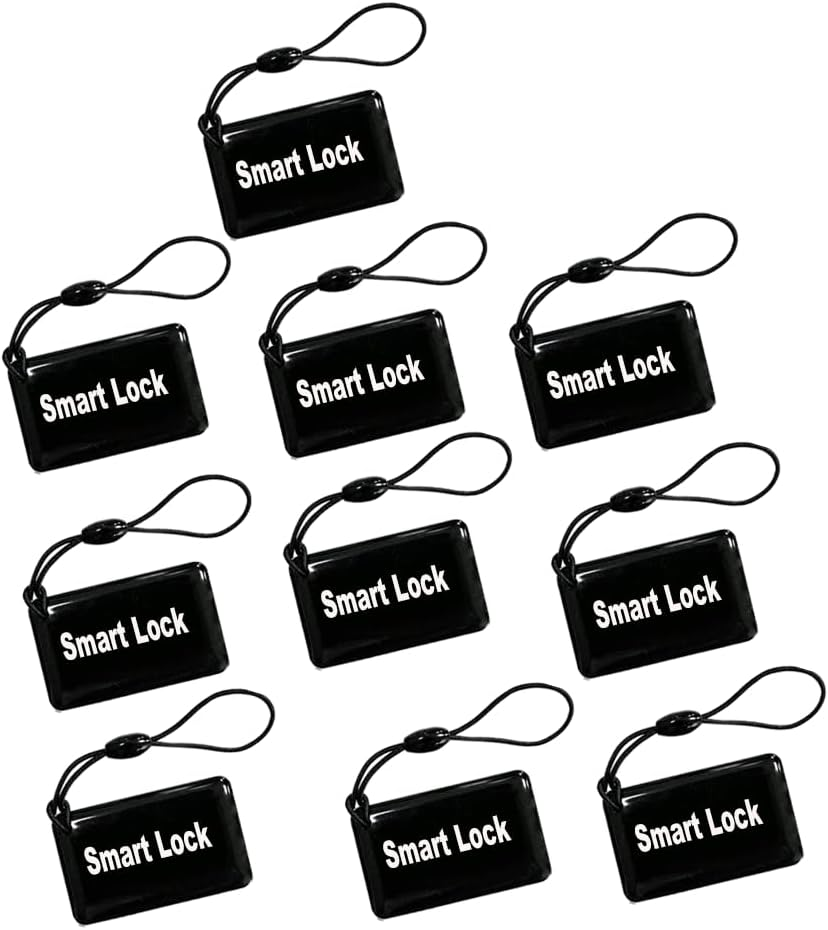
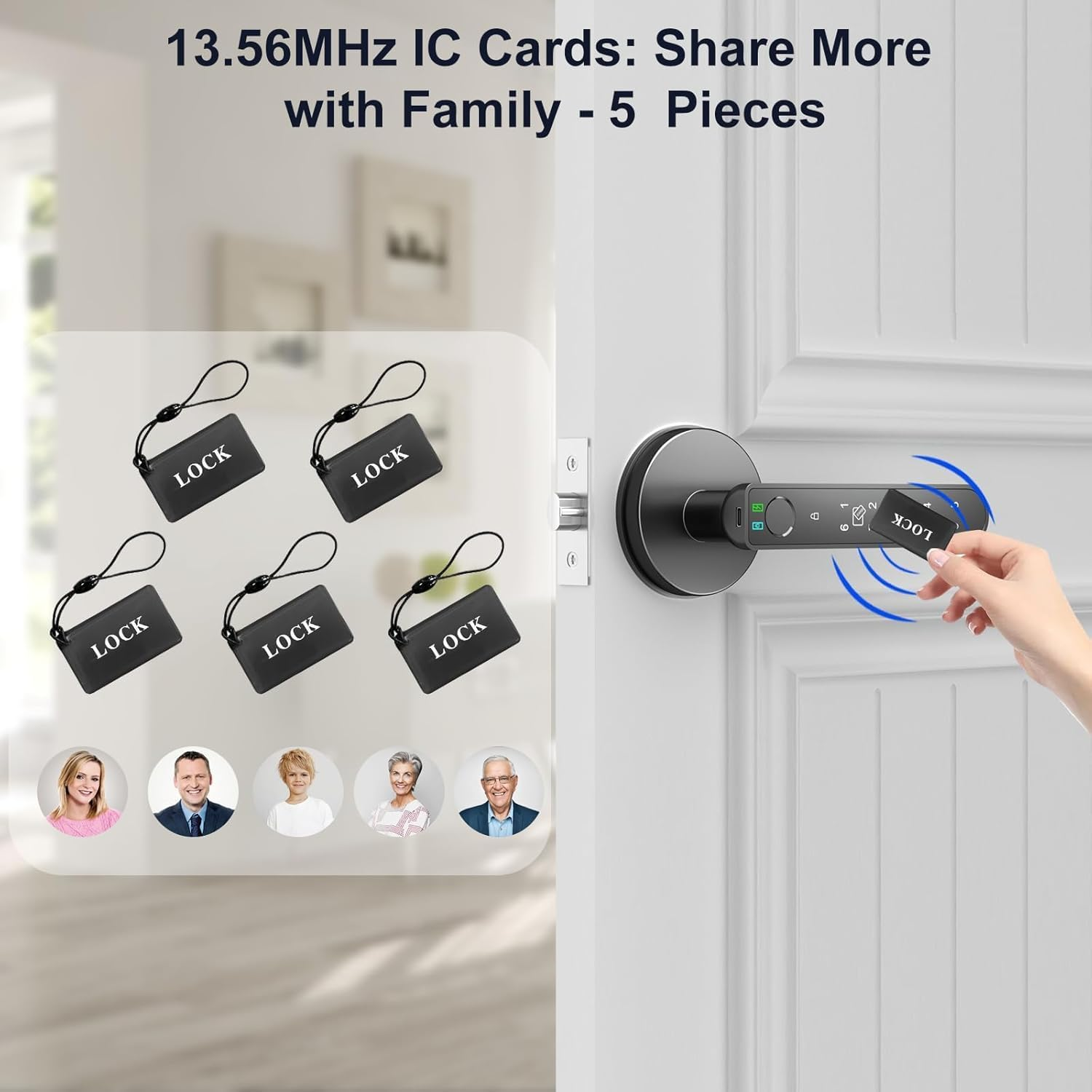
IC Cards for Smart Door Lock, 13.56Mhz RFID Keyless Entry Cards for Door Lock, Compatible with Tuya Smart Life and Ttlock (5)
IC Cards for Smart Door Lock, 13.56Mhz RFID Keyless Entry Cards for Door Lock, Compatible with Tuya Smart Life and Ttlock (5)
Brand: UanTii
A$25.20
-
A$30.45
Availability:
-
Select Styles for Availability
Shop with confidence
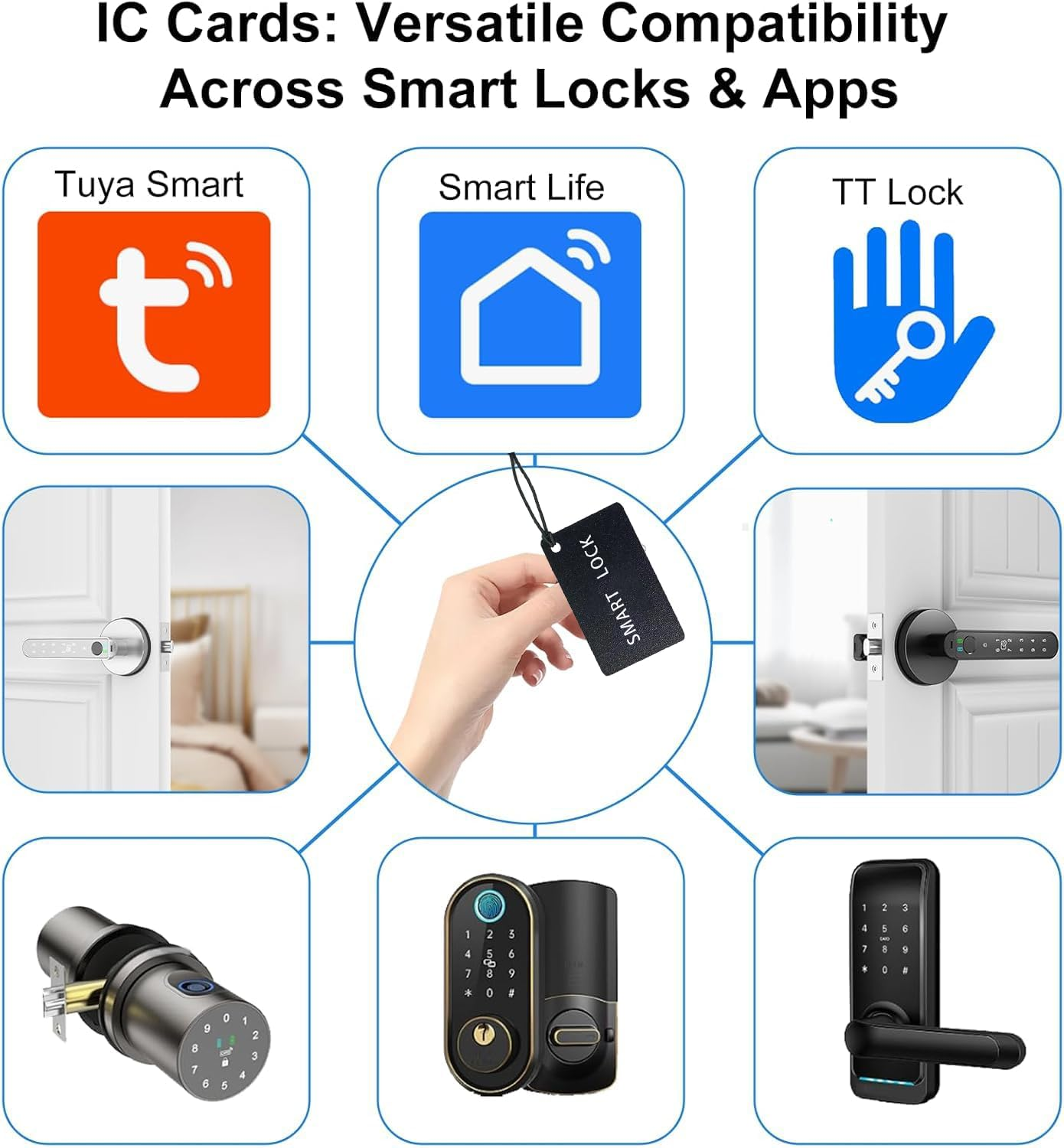
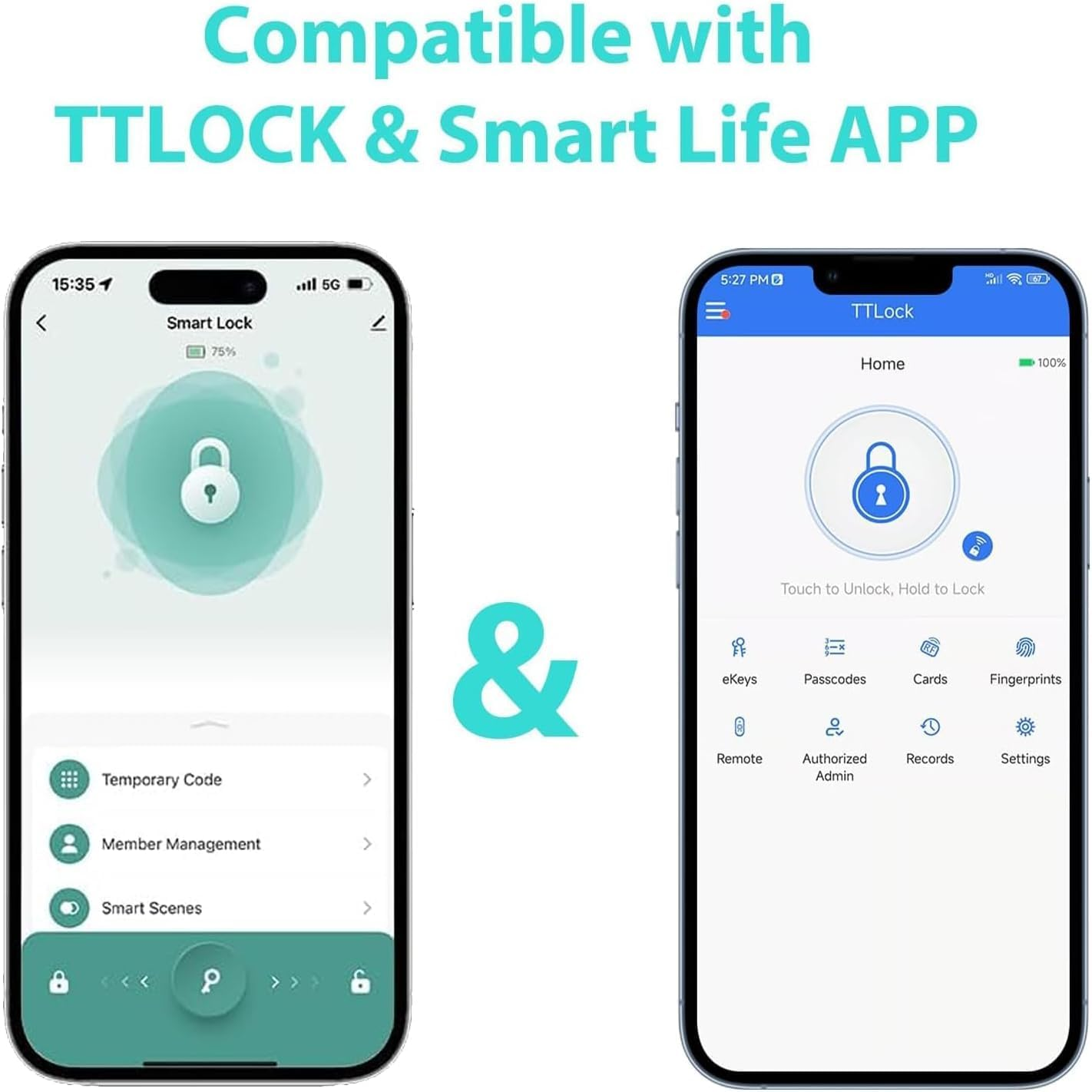
- 【Compatibility】 The IC card is compatible with a wide range of smart door lock models,like Tuya Smart Life or TTLock, making it a versatile choice for upgrading your existing security system.
- 【Quick Deactivation】 In the event that an IC card is lost or stolen, it can be quickly deactivated through the smart lock's management system, ensuring continued security.
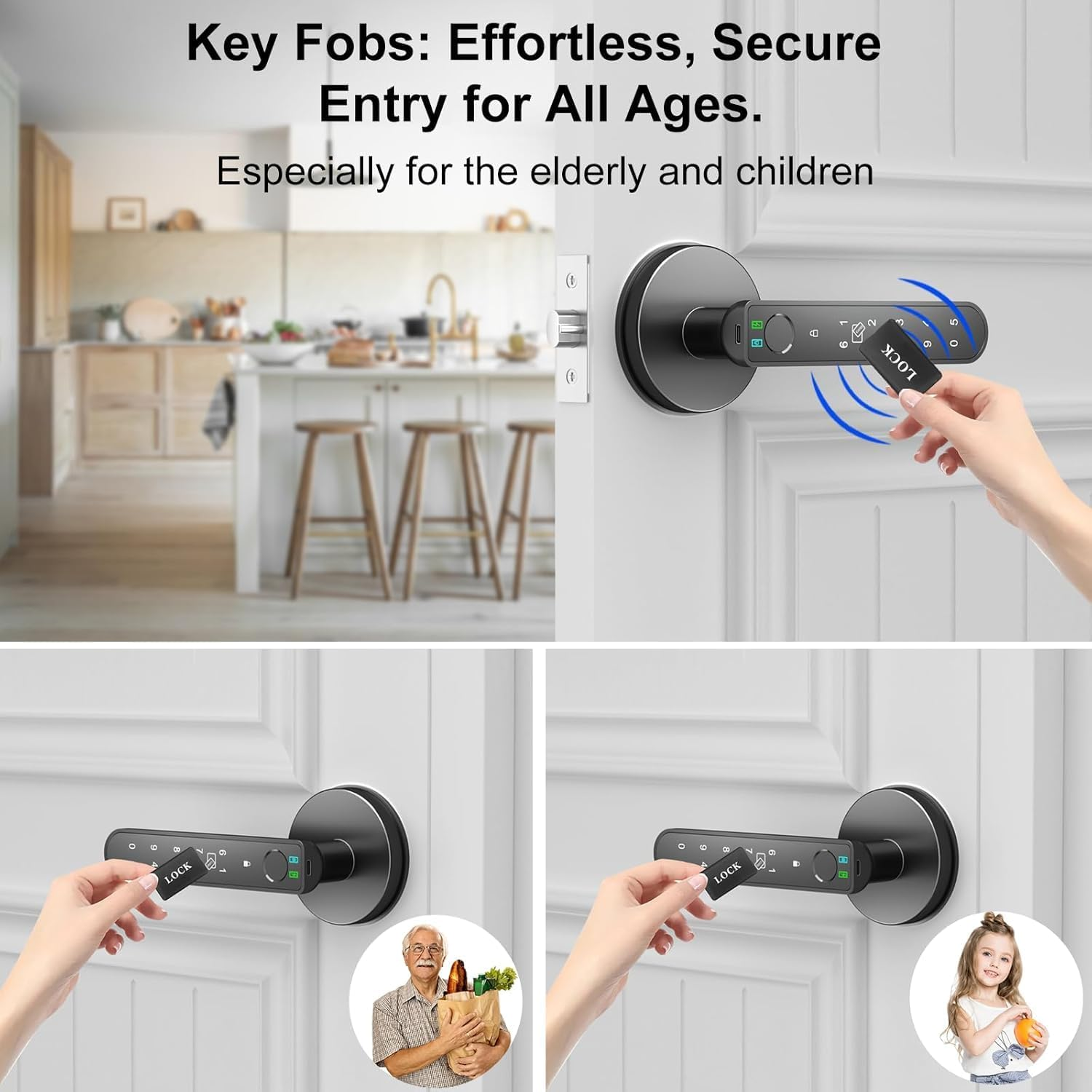
- 【Compact and Convenient】 The smart door lock IC card is designed to be compact and portable, easily fitting into your wallet or pocket for quick access whenever you need it.
- 【Battery-Free Operation】Unlike other access devices, the IC card no need battery, and no internal battery, relying instead on the power generated by the smart lock during the tapping process.
- 【Enhanced Security】 Utilizing advanced encryption technology, the IC card ensures that your home or office remains secure, with unique identifiers that prevent unauthorized duplication.
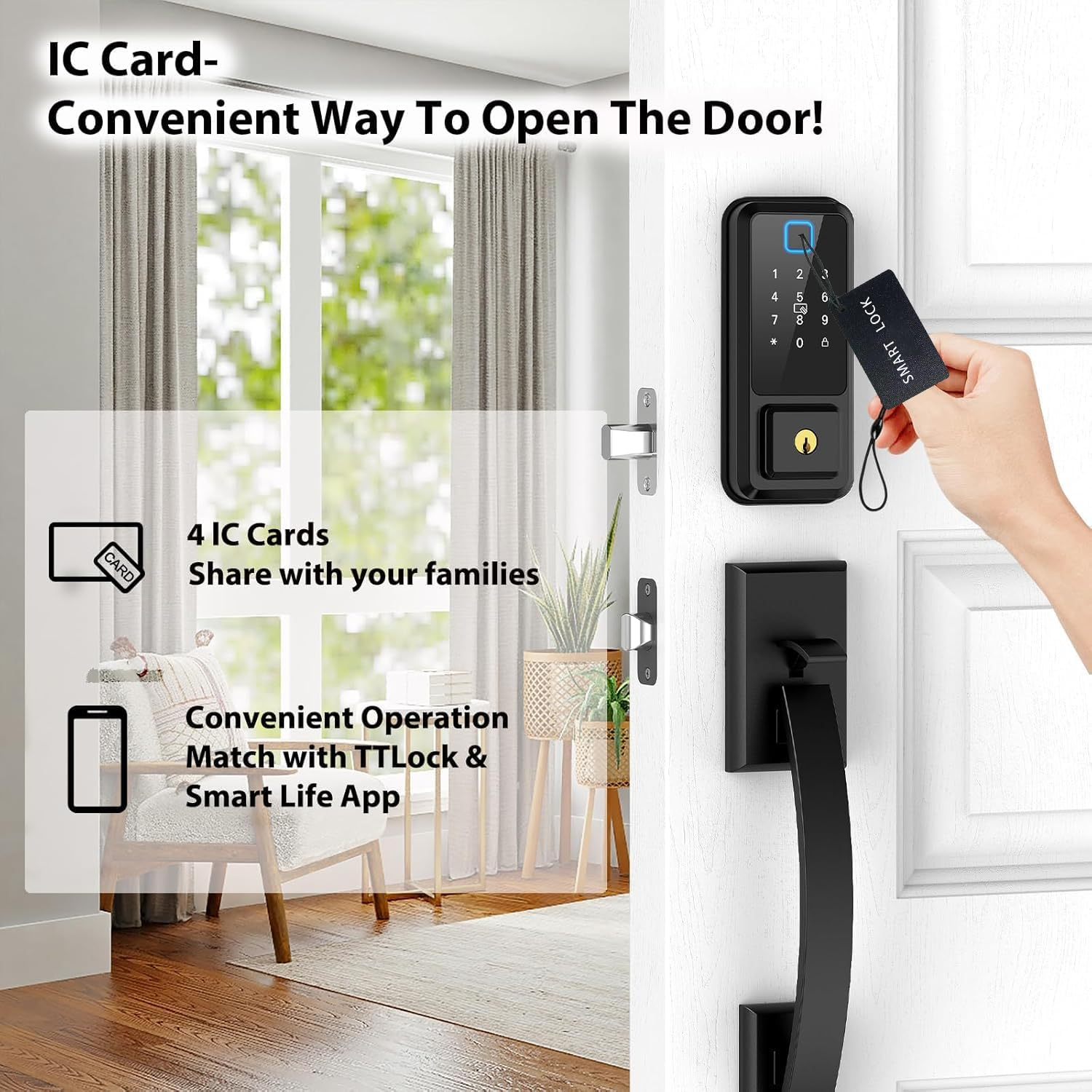
- 【Easy to Use】Simply tap the IC card on the smart lock to gain instant entry, making it a hassle-free solution for both residential and commercial properties.
Note:
The method for adding an IC card varies depending on the smart door lock system you are using. The following instructions are for reference only. For specific steps, please consult your smart door lock supplier or refer to the user manual of the smart door lock.
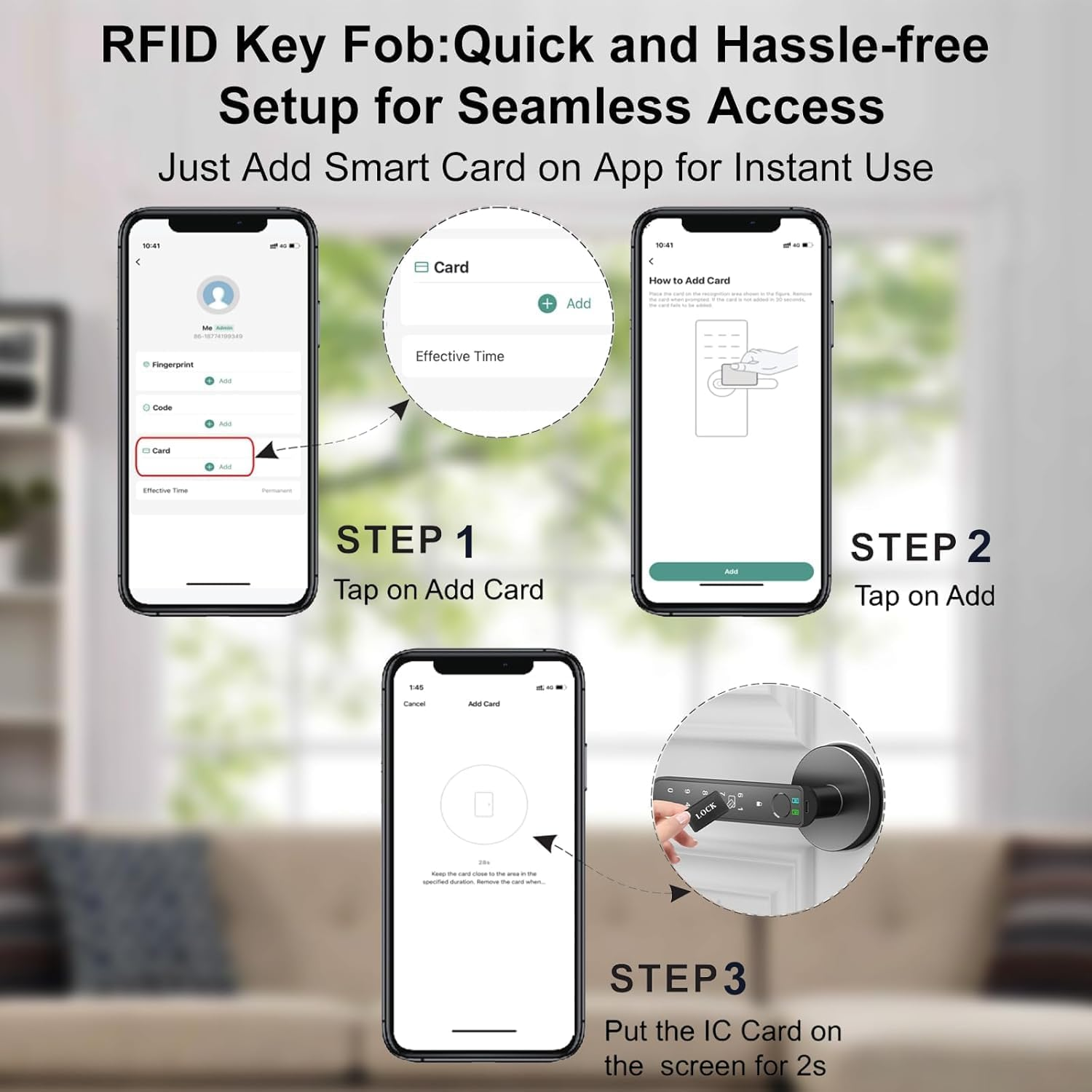
Adding an IC card to a Tuya Smart Life or TTLock smart door lock via App:
For Tuya Smart Life Door Lock:
1;Install the Tuya Smart Life App:
2;Create an account or log in if you already have one.
3;Add Your Door Lock to the App:Open the app and tap the "+" icon to add a new device.
4;Select "Smart Lock" and follow the on-screen instructions to pair your door lock with the app.
5;Register the IC Card: Once the lock is added, go to the lock's settings in the app.Look for an option like "IC Card Management" or "Add IC Card."
6;Tap "Add IC Card" and follow the prompts to place your IC card near the lock's sensor.The lock will recognize the card and register it in the app.
7;Assign the IC Card:You can assign the IC card to a specific user or name it for easy identification (e.g., "Family Member" or "Guest").
8;Save the settings, and the IC card is now ready to use.
For TTLock:
1;Install the TTLock App:
2;Create an account or log in if you already have one.
3;Add Your Door Lock to the App: Open the app and tap the "+" icon to add a new device.
4;Select your lock model and follow the on-screen instructions to pair it with the app.
5;Register the IC Card: Go to the lock's settings in the app.
6;Look for an option like "IC Card" or "Add IC Card."
7;Tap "Add IC Card" and follow the prompts to place your IC card near the lock's sensor.
The lock will recognize the card and register it in the app.
8;Assign the IC Card: You can assign the IC card to a specific user or give it a name (e.g., "Family Member" or "Guest").
9;Save the settings, and the IC card is now ready to use.
Adding an IC card to a Tuya Smart Life or TTLock smart door lock via the keypad:
1;For Tuya Smart Life Door Lock
1;Enter Programming Mode: Wake up the lock by touching the keypad or pressing any button. 2;Enter the admin code (the master code set during initial setup) and press the "#" or "*" button(depends on the lock user manual)
3;Add IC Card:After entering the admin code, the lock will enter programming mode.
4;Follow the on-screen or voice prompts (if your lock has voice guidance).
5;Register the IC Card:Place the IC card near the lock's card reader (usually near the keypad or handle).
6;The lock will beep or flash to confirm the card has been registered.
7;Test the IC Card:Remove the card and test it by tapping it on the reader to ensure it unlocks the door.
For TTLock:
1;Enter Programming Mode:Wake up the lock by touching the keypad or pressing any button.
2;Enter the admin code (the master code set during initial setup) and press the "#" or "*" button(depends on the lock user manual)
3;Add IC Card:After entering the admin code, the lock will enter programming mode.
4;Follow the on-screen or voice prompts (if your lock has voice guidance).
5;Register the IC Card:Place the IC card near the lock's card reader (usually near the keypad or handle).
6;The lock will beep or flash to confirm the card has been registered.
7;Test the IC Card:Remove the card and test it by tapping it on the reader to ensure it unlocks the door.
Important Notes:
Admin Code Required: You must have the admin code to add an IC card via the keypad. If you don’t know the admin code, you may need to reset the lock or use the app.
Voice Guidance: Some models have voice prompts to guide you through the process. Listen carefully to the instructions.
Compatibility: Ensure the IC card is compatible with your specific lock model.
Limit of Cards: Check your lock's user manual to see how many IC cards it can support.
Tips for Success:
Ensure your door lock is powered on and within Bluetooth range of your phone during the setup process.
If the lock fails to recognize the IC card, try repositioning the card or restarting the process.
Always test the IC card after registration to ensure it works properly.
By following these steps, you can easily add and manage IC cards for your Tuya Smart Life or TTLock smart door lock. If you encounter issues, refer to the app's help section or refer to the lock's user manual or contact Tuya/TTLock customer support for assistance.
- Item Model Number: UTIC0510
- Batteries Required?: No
- Number Of Items: 5
- Product dimensions: 5 x 0.01 x 3 cm; 50 Grams
- Material: Plastic
- Country of origin: China
- Item Weight: 50 g
- Special Features: support Tuya/Smart Life/TTlock lock
- Manufacturer: Uantii Intelligent Technology
- Colour: black
- Included Components: ic card
A$25.20
-
A$30.45
Shipping to Australia
Delivery time varies by location
Return & Refund Policy
Check our return & refund policy
Security & Privacy
Safe payments: We do not share your personal details
Availability:
-
Select Styles for Availability
Sign in
or create an eMega account
Shop smarter — get exclusive deals & order tracking